Sketch: Collaboration Hub
Turning Sketch from a Mac file into a place teams could share, without access breaking when work moved.
Sketch was a brilliant Mac app that still behaved like a file on a disk. The work was to make it a place: workspaces, permissions, drafts, comments — collaboration that did not feel bolted on.
I was on Core, across product, UX, and engineering. The interesting problems were not the screens. They were the transitions: what happens to access when a document moves from a private draft to a shared team.
Workspaces & Projects
Organizing design work at scale is no small feat. We created distinct Workspaces to keep organizational work separate and secure. To make navigation seamless, we introduced a Workspace Selector that allowed users to switch contexts instantly 1.
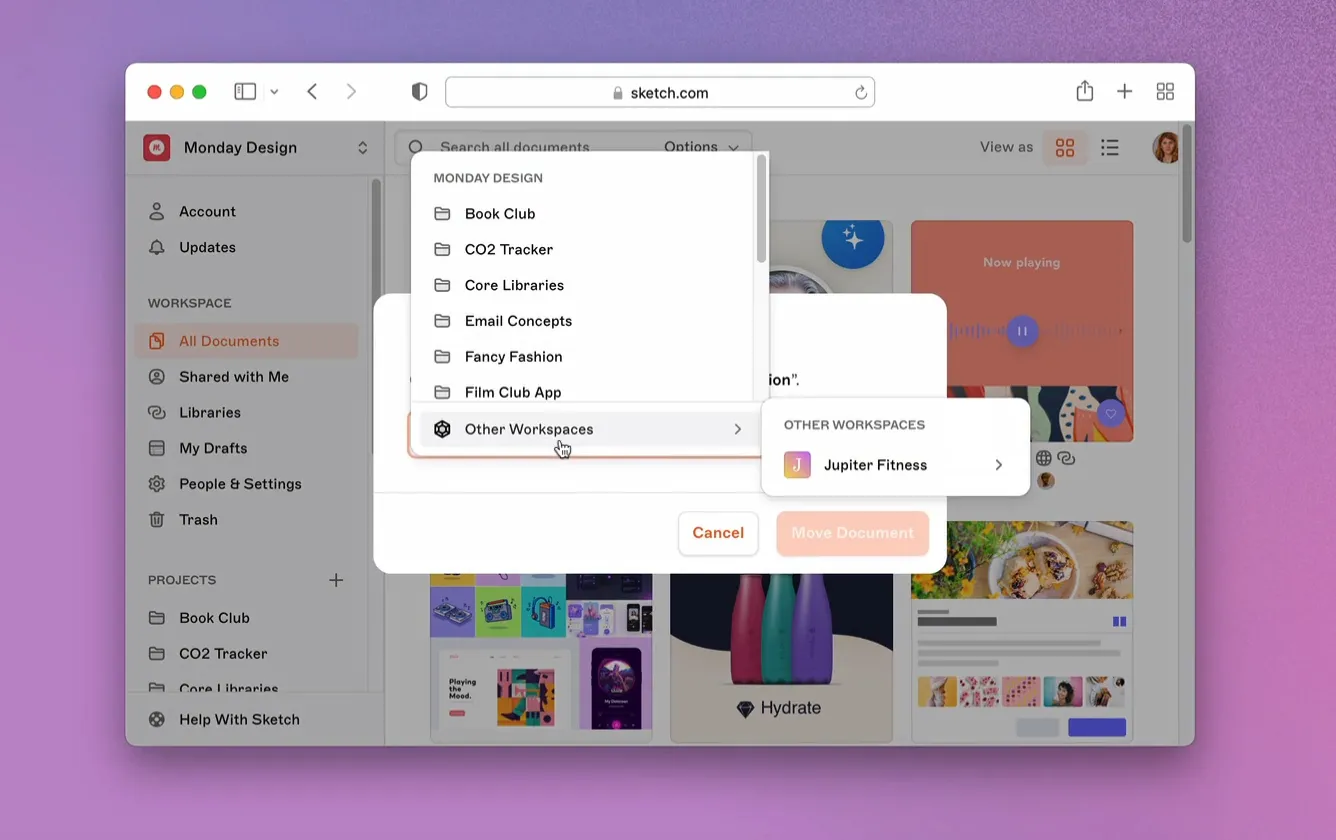
The real challenge wasn’t just showing the workspaces — it was moving things between them.
I worked heavily on the logic for moving documents and projects across workspaces. This was a complex orchestration task because of permission transitions. We had to ensure that when a document moved from a private project in Workspace A to a shared team in Workspace B, the access controls adapted — keeping data safe without breaking the user’s flow.
We also refined Project management. We added the ability to create projects directly from the sidebar. Initially we used a quick inline editor, but as we added more granular permissions, we evolved this into a dialog so setup happened up front.
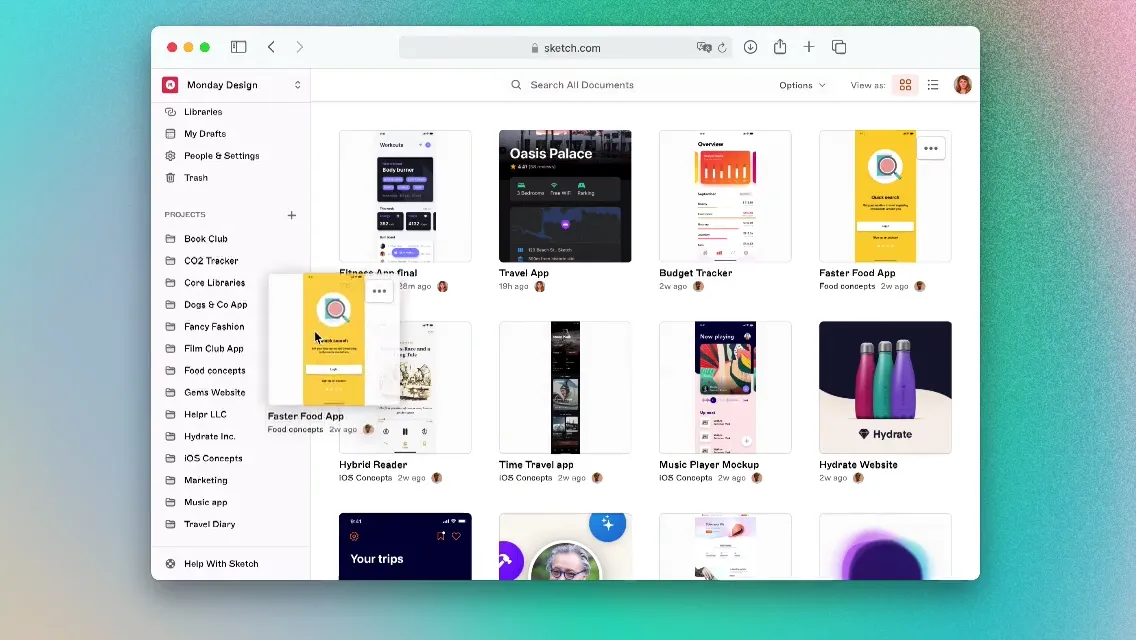
We also added quality-of-life features like Starring (for quick access), Locking (for privacy), and Archiving (to keep things tidy without deleting history) 2.
Permissions
As design teams grew, they needed more than “Public” or “Private” — they needed control. We built a system that let designers specify who could access, edit, or share their work.
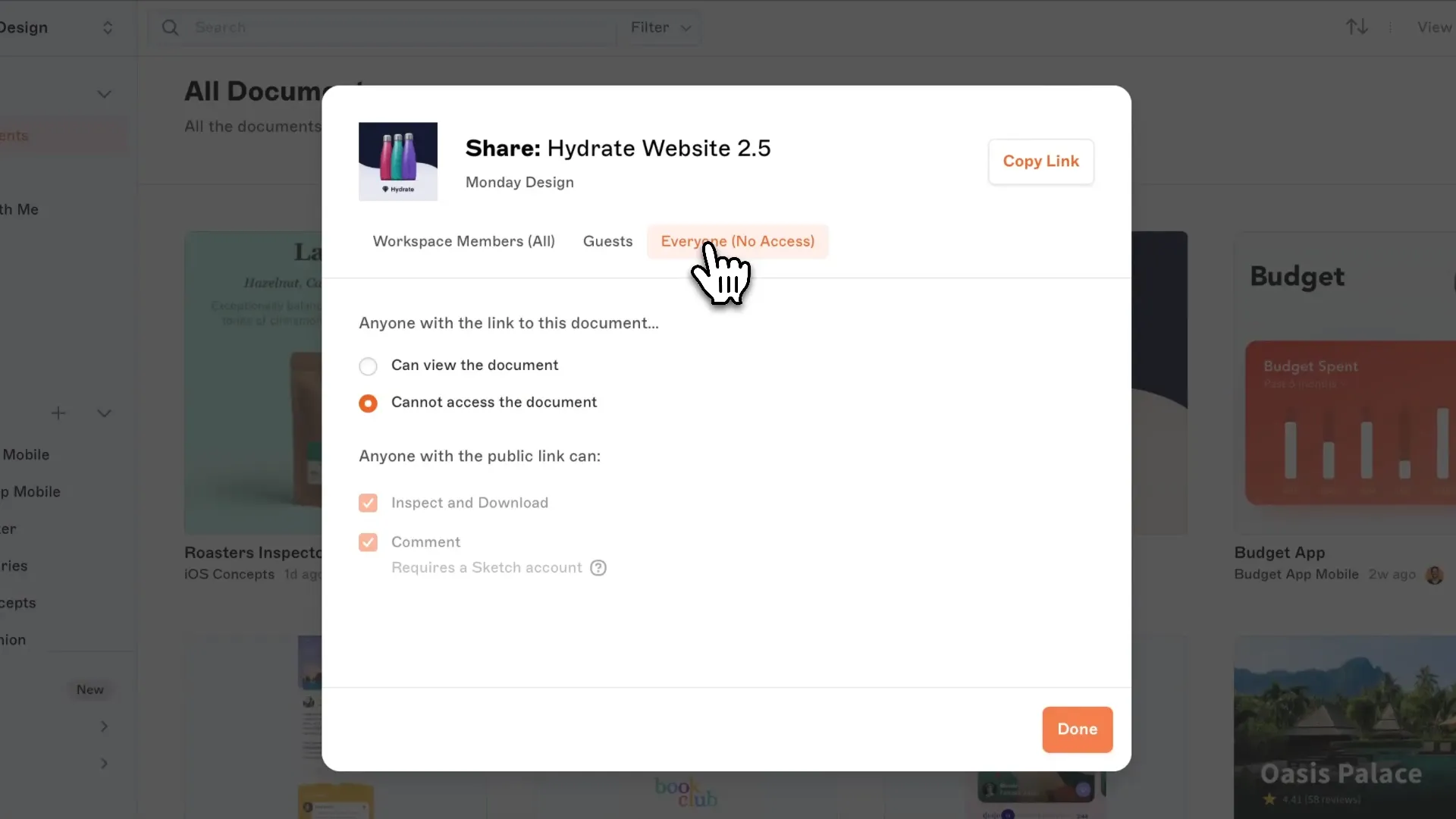
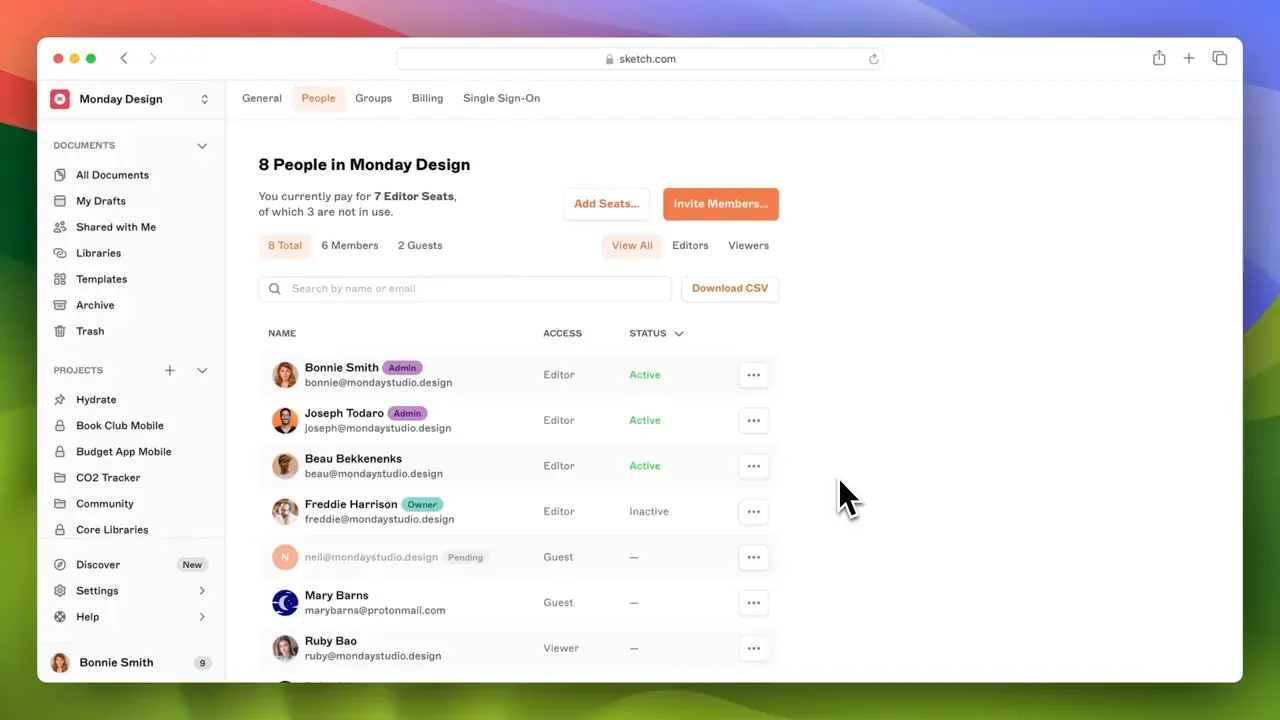
A highlight was the Access List for high-profile clients. They needed a centralized way to manage rights for large teams of stakeholders. We made adding people, assigning roles, and creating Permission Groups visual and simple 3.
Drafts & Versioning
Creativity needs a room that is not production. That’s why we built Drafts.
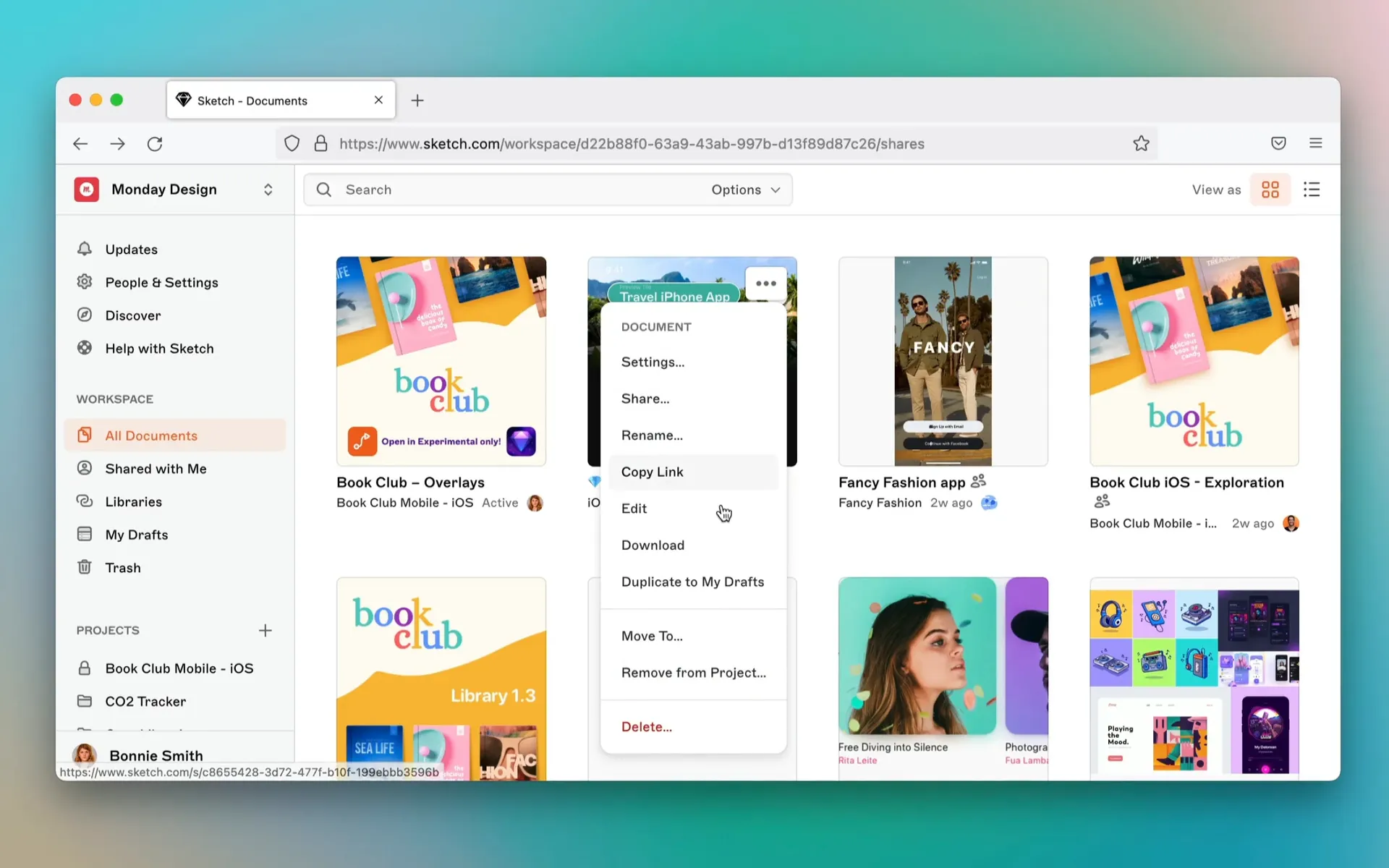
Drafts let designers duplicate files and experiment privately, or share with a few people for feedback, before anything was “the file” 4.
Iteration also means mistakes. I contributed to Design File History, so every uploaded version could be retrieved.
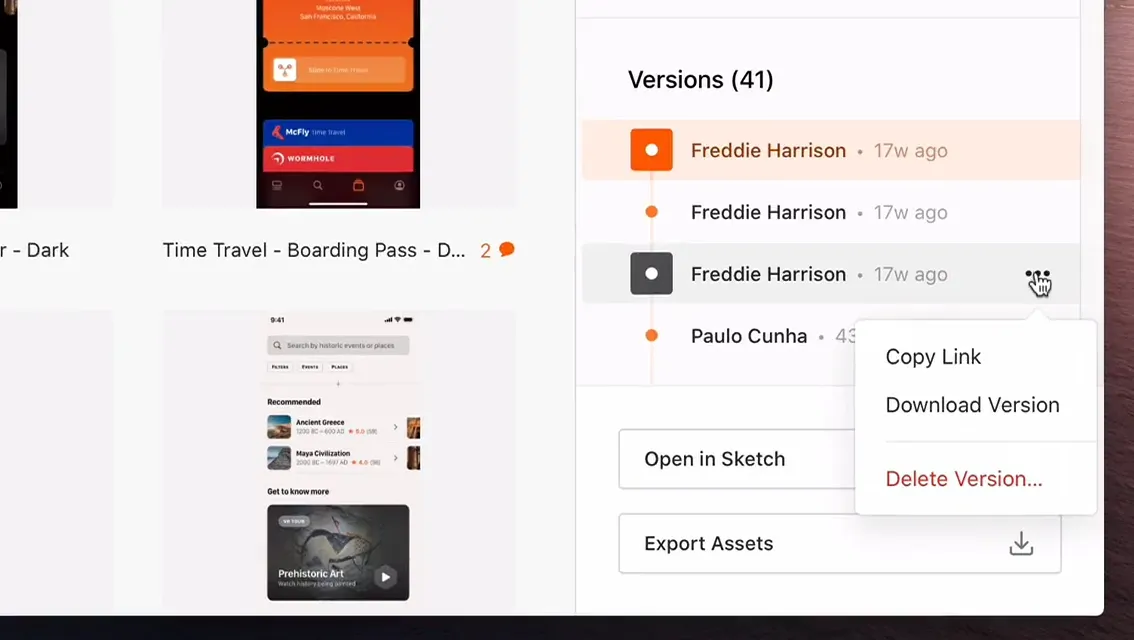
We made it possible to roll back if an exploration went the wrong way. We also added Starred Updates — mark a version as a milestone, lock it, keep it from being overwritten 5.
On-canvas commenting
We wanted collaboration to feel native. Point-and-click commenting sat on the canvas, so feedback was tied to a pixel or an artboard instead of a vague note in a sidebar.
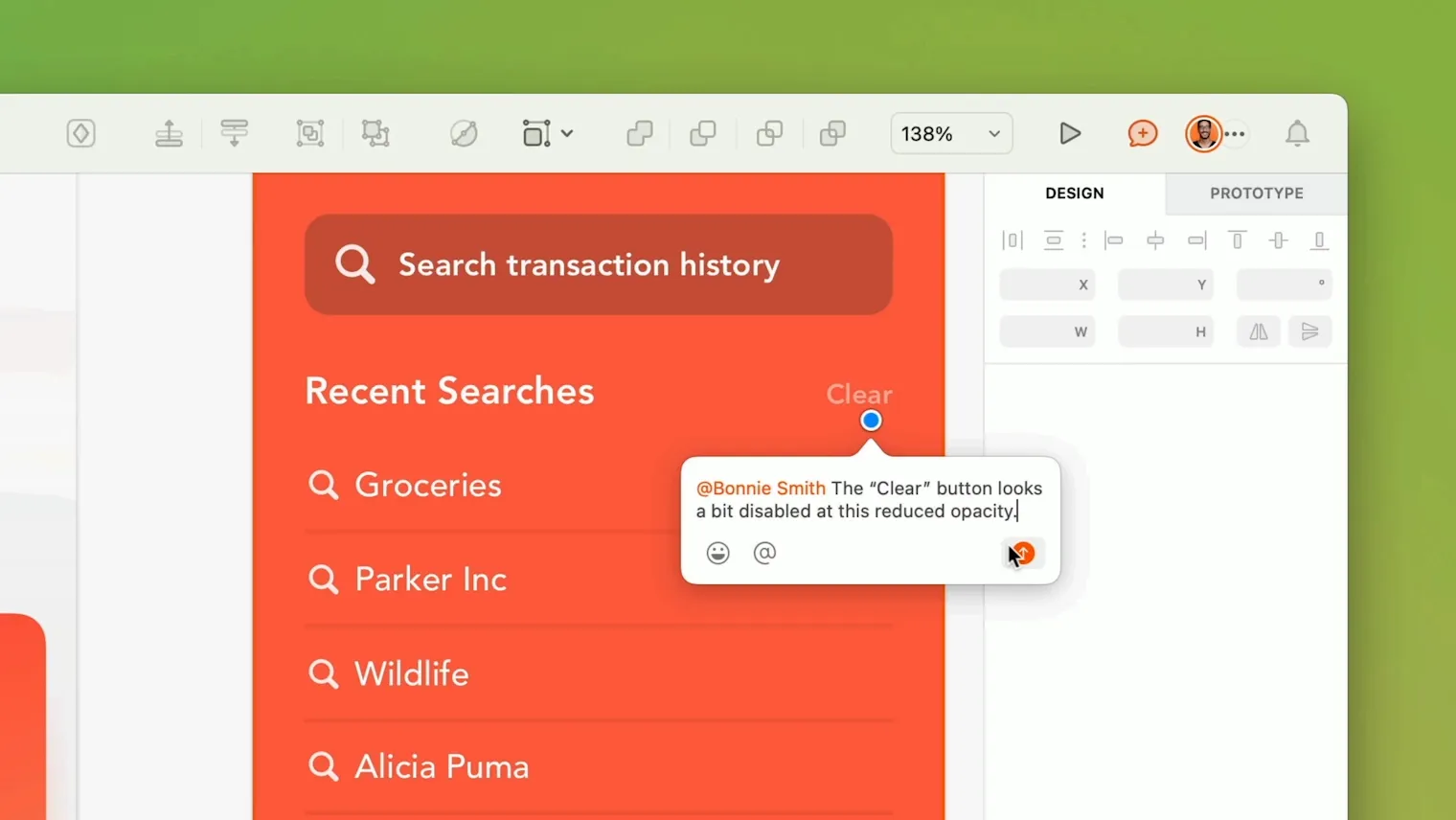
We built threaded conversations and a notification system (which I helped redesign) so people did not have to live in email to stay in the loop 6.